CityDashBoard TalesofThings MapTube
Qrator Tutorials About Digital Urban
MRes ASAV SurveyMapper Contact Us
Showing posts with label How To's. Show all posts

2008-04-16

How to Embed Flash Panoramas in Blogger and WordPress

Another test of embedding Flash based panoramas into Blogger - this time with the Houses of Parliament at Night, click and drag to look around:

An example of Gothic Architecture the Houses of Parliament were constructed between 1840 and 1888. The panorama is taken outside the main tower near Westminster Bridge and the River Thames. The tower stands 320 foot tall and is named after the largest bell, 'Big Ben' which weighs over 13 tons, and was cast in 1858 at the Whitechapel Bell Foundry in East London.

How is it done?

1) See http://flashpanoramas.com/player/ for the viewer.

2) Create your webpage with the viewer and your panorama

3) Embed in blogger/wordpress using an iframe as per the code below:

2008-03-17

Greeble a 3D City: Tutorial 2: The Cityscape

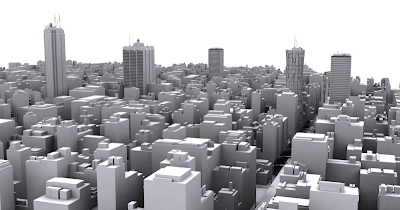
A city can be constructed using 3D Studio Max in under 5 minutes using the Greeble Plugin and a few simple steps. In the second part of our series on Greebling a City we take a look at creating the cityscape itself.

If your new to Greeble take a look at the first part of our tutorial: Greeble a 3D City: Tutorial 1: Greeble Skyscraper.

To build a Cityscape:

You will need:

1x Copy of 3D Studio Max (a 30 Day trial can be downloaded from here)
1x Greeble Plugin installed into your Plugins Folder

Time Required: 5 -10 Minutes
Level: Beginner

Step 1: Making a City Block

Create a new Plane object as pictured below, we used 100x100 units with 10x10 width and length segments (hint: press F4 to view the outline view if it is not visible):

This creates our basic outline, we now want to convert this plane to a Editable Poly, to do this simply right click and select 'Convert to Editable Poly', as pictured below:


Step 2: Greeble the City

Now we have an editable polygon we can click on our Modify list and select Greeble:

As soon as we click Greeble a basic cityscape will appear with small units on the roof and a low rise city block. There are a couple of tweaks we want to make to create a more city like view, firstly set 'Taper' to 0 and increase the height to say 35 units. This produces the city block illustrated below:

You now have the basics for building a city, if you clone the block and change the heights in each section you will begin to build a background cityscape in which to insert various more detailed buildings as seen in our first tutorial.
Road layouts can be included and more realism by including simple additions such as street lights and signage. Greeble can be an extremely useful tool for quick and easy city models, we hope this tutorial as provided an insight into how to quickly and easily build your own city.

In future tutorials we will look at Rendering the City, as previewed here and if there is interest taking a look at creating road junctions and textures, let us know if there are any additions you would like to see...


2008-03-03

Greeble a 3D City: Tutorial 1: Greeble Skyscraper

Greebles became a core part of our 'Fantasy Architecture City' a few years back - allowing details to be added to buildings quickly and easily. In a new series of posts we thought we would provide a walk through of how to quickly and easily create your own city using the Greeble Plugin for 3D Max.

For those new to Greebles - Wikipedia defines them as:

A greeble or nurnie is a small piece of detailing added to break up the surface of an object to add visual interest to a surface or object, particularly in movie special effects. They serve no real purpose other than to add complexity to the object, and cause the flow of the eye over the surface of the object to be interrupted, usually giving the impression of increased size. It is essentially the small detailed technical part of a larger object. The detail can be made from geometric primitives, including cylinders, cubes, and rectangles, combined to create intricate, but meaningless, surface detail. Greebles are commonly found on models or drawings of fictional spacecraft in science fiction.

In part one we are going to build the skyscraper featured top right:

You will need:

1x Copy of 3D Studio Max (a 30 Day trial can be downloaded from here)
1x Greeble Plugin installed into your Plugins Folder

Time Required: 5 -10 Minutes
Level: Beginner

Step 1: Making a Cylinder

Create a new cylinder in 3D Max with the following units: Radius: 50, Height: 600, Height Segments: 32, as pictured below:


For those new to 3D Max the Cylinder object can be found under 'Standard Primitives' on the right hand side tab with the 'Arrow' Icon.

Step 2: Selecting the Polygons

We are going to give the cylinder some shape by using the 'Taper' Modifier, before we taper we need to convert the Cylinder to an 'Editable Poly' - simply right click on your cylinder and select 'Convert To/Convert to Editable Poly':


Step 3: Adding some Shape

Now our cylinder is converted we need to select all the polygons in order to change the shape to something a little more interesting. Go into the objects 'Modify' list - you will find 'Modify' next to the Create Tab. Expand the drop down list and select 'Polygon', now click and drag around the object and you will see your selected polygons turn red.

We now apply the 'Taper' Modifier which is under your 'Modify' list. We have used 0.4 for the amount and ticked the 'Symmetry' box to ensure the top and bottom of our skyscraper is tapered by the same amount.

Once your object is tapered right click on your cylinder and select 'Convert To/Convert to Editable Poly' exactly the same as last time.

Our object is now ready to be 'Greebled'

Step 4 Greeble

Select all your polygons again and on your ''Modify' tab scroll down and select 'Greeble'. Your skyscraper will be transformed from a dull cylinder to a slightly more futuristic building:


There are a number of setting that can be tweaked using Greeble, the standard setting should be fine but feel free to change the extensions, densities and type until you are happy with the result.

Step 5 Adding Detail

We can now add some quick detail to the roof by adding on 3 standard boxes:

Once placed select all three boxes and click Greeble again:


Greeble can be extremely useful, in little under 5 minutes a simply cylinder can be transformed:

The next step of the tutorial will cover using Greeble to build a complete city in which to insert your own fantasy skyscrapers...

See: Greeble a 3D City: Tutorial 2: The Cityscape

You can see our Fantasy City running in Crysis Game Engine via our Cities in Crysis: Sandbox Editor post.

2007-09-05

Digital Urban - The Tutorials

This post contains links to all of our tutorials to date - created as a reference page for blog links or bookmarks to ensure the tutorials can be easily found.

The post will be updated whenever a new tutorial is added.

We hope you like them, if there is any tutorial you like to see just let us know..

Photoshop Image Stacking for Day Trails


Reactor Basics: 3D Max, Bouncing Balls in a 3D City

3D Max Balls in the City from digitalurban on Vimeo.


Torch + Webcam = HD Timelapse System


Image Stacking for Star Trails and City Air Activity at Night


iPhone Timelapse Tutorial


Greeble a 3D City: Tutorial 1: Greeble Skyscraper


Greeble a 3D City: Tutorial 2: The Cityscape


Google Earth PhotoOverlay - Download and Tutorial


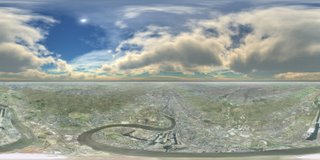
How to Capture Google Maps for Printing and Poster Design


How to Create Engaging Movies from Google Earth & Virtual Earth


How To Create Aerial Panoramas from Virtual Earth


How to Create an Aerial Panorama from Google Earth


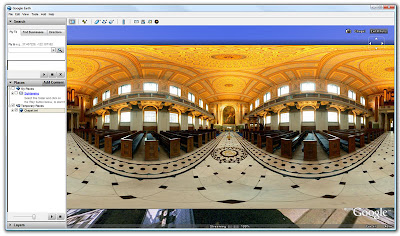
How to use Google Earth as a Panorama Viewer -Tutorial and Files


How to Create Engaging Movies from Google Earth & Virtual Earth


How to Create Quick and Easy Augmented Reality from SketchUp/3DMax etc


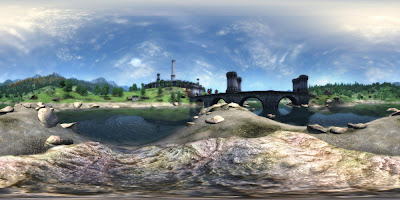
How to create Panoramas from Oblivion


How to Import SketchUp/3D Max into the Oblivion Engine for Architectural Visualisation - Part 1

How to Import SketchUp/3D Max into the Oblivion Engine for Architectural Visualisation Part 2


How to Stitch a Panorama with the Nokia N95


How to Geotag Photographs on the Nokia N95 for Google My Maps and Flickr


How to create Isometric Pixel Art - Simulating in SketchUp Tutorial


How to Create The 3D London Tube Map from Adobe Acrobat to 3DMax