


The work was only a proof on concept but still fell foul of copyright - see here for full details. As a proof of concept its an impressive one and again shows the power of Crysis for visualisation.
Showing posts with label Oblivion. Show all posts
Showing posts with label Oblivion. Show all posts
2008-11-27
Oblivion in Crysis Engine
We have worked in both the Oblivion and Crysis Engines and the movies below represents an interesting crossing of worlds - Oblivion running in Crysis:
The work was only a proof on concept but still fell foul of copyright - see here for full details. As a proof of concept its an impressive one and again shows the power of Crysis for visualisation.
The work was only a proof on concept but still fell foul of copyright - see here for full details. As a proof of concept its an impressive one and again shows the power of Crysis for visualisation.


2008-11-06
Back to Oblivion: Final Import Movie Elder Scrolls IV - SketchUp Model
 Scanning our old hard drive we came across our final movie detailing the results of a tutorial for importing Google SketchUp models into the Oblivion gaming engine. We thought it was lost to a previous hard drive crash but having found it we thought it was worthy of uploading to Vimeo and sharing again:
Oblivion Mod: University College London Quad from digitalurban on Vimeo.
The process of going from Google SketchUp to Oblivion is well worth it, simply follow our two part tutorial on importing objects SketchUp/3DMax into Oblivion.
2007-08-06
Crysis Engine Level Editior - Rapid Level Modification
Over the last few months we have taken a couple of looks at the forthcoming game Crysis using the CryEngine 2 for architectural visualisation.
The movie below provides a quick recap on the quality and realtime lighting:
Of interest for urban visualisation is the level editor which is detailed in the next movie embedded below. If you get through the first minute or so it provides a good insight into the capabilities of the engine:
Although the movie is focused on game editing it is equally applicable to architectural visualisation, especially with the realtime shadows and lighting.
If your interested in using game engines for visualisation take a look at our two part Oblivion Tutorial. Oblivion is still the easiest engine to import into, the following movie was the result of less than one hours work:
For those interested we are currently building the same model in Second Life - see our previous posts for the location, feel free to pop along to check on progress.
The movie below provides a quick recap on the quality and realtime lighting:
Of interest for urban visualisation is the level editor which is detailed in the next movie embedded below. If you get through the first minute or so it provides a good insight into the capabilities of the engine:
Although the movie is focused on game editing it is equally applicable to architectural visualisation, especially with the realtime shadows and lighting.
If your interested in using game engines for visualisation take a look at our two part Oblivion Tutorial. Oblivion is still the easiest engine to import into, the following movie was the result of less than one hours work:
For those interested we are currently building the same model in Second Life - see our previous posts for the location, feel free to pop along to check on progress.
2007-07-02
Oblivion Elder Scrolls IV Import Movie
Following our two part tutorial on importing objects into Oblivion with a few finishing touches we can go from the original model in Google SketchUp to various weather and lighting effects in Oblivion:The 4 minute YouTube movie above details the model in Oblivion captured in real-time.
We will be uploading some sample files to aid the tutorial in the next few days...
2007-06-29
Tutorial - Importing SketchUp/3D Max into the Oblivion Engine for Architectual Visualisation Part 2
Welcome to the second part of the tutorial aimed at providing a step by step guide to importing models into the Oblivion Engine. Part 1 detailed the setting up of your first environment, leaving you with an empty flat plain of land on which to import models as we illustrate in the YouTube movie below:
There are a number of newly emerging paths into Oblivion - most notably via the free version of Google SketchUp and Blender, we will be covering these over the coming weeks. This tutorial is aimed at exporting from SketchUp Pro to 3D Max and finally into Oblivion although any import method into 3D Max will work.
For this tutorial you will require:
1) SketchUp Pro - A fully functional 8 hour version can be downloaded from here.
2) 3D Studio Max - A 30 Day fully functional trial can be downloaded here.
3) Nif Tools Exporter for 3DMax - Blender and Maya are also available from here.
4) Convim - A image conversion package to convert files to the .dds format allowing you to import textures. Download via the Convim site.
5) A 3D Max script to change image settings - Part of the BlurScripts pack which can be downloaded here (zip file).
In our case we will be converting our model of the Quad at University College London to Oblivion - this is used as an example due to it high number of textures allowing us to detail how to process complex models:
Step 1
Open or create your model in SketchUp and export to the .3DS format. Ensure that the model is exported as a single object with generate cameras unticked.
Step 2
Download the Nif Tools Exporter for 3DMax and extract the two files - NifPlugins.dlu to the 3D Max Plugins directory and MaxNifTools.ini to the Max Plugcfg directory.
Step 3
Download the Blur Scripts file and extract the folder 'BlurScripts' into your Max Scripts directory.
Step 4
Import your model into 3D Max choosing to 'Completely replace current scene'. You should see your model within 3D Max:
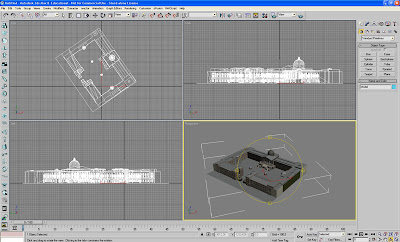
Step 5
Make sure your model is grouped into a single mesh. If not group your object and then right click 'Convert to Editable Mesh'.
Step 6
We need to find and replace all the texture file names within 3D Max to the .dds extension (the format that imports into Oblivion). Click 'MaxScript'/'RunScript' from the top tool bar. Navigate to the BlurScripts folder and select 'ChangeBitmaps'.
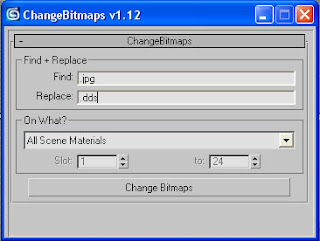
In our case we want to change .jpg to .dds for the files we will create later using Convim. Type .jpg and .dds into the relevant dialogue boxes as pictured above and click 'Change Bitmaps'.
Step 7
Export the file in Nif format - Click 'File\Export', select File Type Netimmerse.Gamebryo .kf .nif. Navigate to your Oblivion folder and then onwards to \data\meshes. Type in your model name, in our case UCLQuad.Nif and click 'Save'. An export box will appear as pictured below:

Select the options as pictured and click 'Export'. You model is now saved in the .nif file format ready for import into Oblivion.
Step 8
Before we import into Oblivion we need to convert the texture files to .dds format. Open Convim and select your model texture location on the left using 'All'. The file conversion should be set to DDS DXT1 Texture with the folder path to Oblivion\Data\Textures as pictured below:
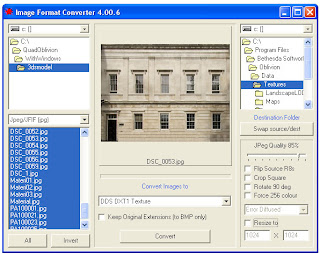 Click 'Convert' - you now have the model and the textures in the correct format ready to import.
Step 9
Open the Elderscrolls Scrolls Construction Set and select 'File\Data'. We will be using the files created in Part One of this tutorial - in our case we created DigitalUrban.esp. Firstly double click Oblivion.esm and DigitalUrban.esp (or your file name) a cross will appear next to the files. With your file name highlighted click 'Set as Active File' this ensures that your world loads correctly into the construction set. Click 'OK' and your world will load.
Step 10
All we now need to do is simply open our World Space and import a new object. In Cell View scroll down until you find your worlds file name - Select it (again in our case Digital Urban) and double click in Cell1 where we will see the tree we placed in the first part of the tutorial. Double click the tree and then click the 'Lightbulb' icon in the top tool bar to ensure you can see it.
You screen should now look as illustrated below:
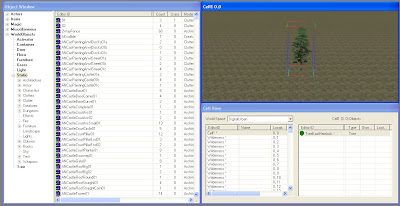
In the Object Window - on the left - select 'Static' and right click on any object name in the list, Select 'New' and type in a ID into the option box, in our case UCLQuad. Click 'Add Nif File' and choose your model saved out of 3DMax. Click Ok.
The model is now ready to be added to the scene.
Step 11
Scroll down the list until you find your newly created ID file - click and drag it into the render window next to your tree. You model will now appear fully texture mapped into the editor:
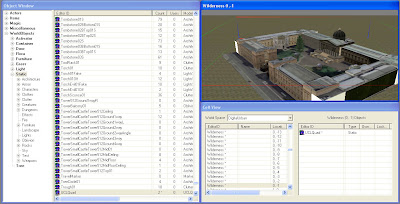 Finally - Click 'Save'.
Step 12
Launch Oblivion - you are now ready to view your world. Select 'Data Files' from the Oblivion start screen. A menu will appear allowing you to load your new world. Select 'Oblivion.esm' and 'YourWorldName.esp' - ours is DigitalUrban.esp. Click 'OK' and Play' from the main menu.

The YouTube Movie below demonstrates our final world created by following the above steps:
Note that when the world first loads the graphics are flicking and the sky is displaying errors.
This is easily fixed by:
Step 13
Press the key next to 1 on most keyboards labelled '¬' or '~' this allows console commands to be entered. Type 'TS' and then 'Press Enter' now repeat and you will see that the sky is now correctly turned on. There are a number of commands you can use in this mode to turn functions such as Flying, God Mode and Weather Effects on and off, see GameSpots guide for a full list.
Step 14
Press 'T' to allow you to advance in time - towards daylight, select 10 hours.
Your world is now complete and navigable within the Oblivion Engine. Use W/S to move forwards and backwards, A/D to move left and right. Press 'R' for a third person viewpoint.
We hope that the path from the first movie in the tutorial towards the image of the Quad in SketchUp and finally the movie of the Quad in Oblivion makes the point of how powerful game engines can be for visualisation...
There are a number of newly emerging paths into Oblivion - most notably via the free version of Google SketchUp and Blender, we will be covering these over the coming weeks. This tutorial is aimed at exporting from SketchUp Pro to 3D Max and finally into Oblivion although any import method into 3D Max will work.
For this tutorial you will require:
1) SketchUp Pro - A fully functional 8 hour version can be downloaded from here.
2) 3D Studio Max - A 30 Day fully functional trial can be downloaded here.
3) Nif Tools Exporter for 3DMax - Blender and Maya are also available from here.
4) Convim - A image conversion package to convert files to the .dds format allowing you to import textures. Download via the Convim site.
5) A 3D Max script to change image settings - Part of the BlurScripts pack which can be downloaded here (zip file).
In our case we will be converting our model of the Quad at University College London to Oblivion - this is used as an example due to it high number of textures allowing us to detail how to process complex models:
 Step 1
Open or create your model in SketchUp and export to the .3DS format. Ensure that the model is exported as a single object with generate cameras unticked.
Step 2
Download the Nif Tools Exporter for 3DMax and extract the two files - NifPlugins.dlu to the 3D Max Plugins directory and MaxNifTools.ini to the Max Plugcfg directory.
Step 3
Download the Blur Scripts file and extract the folder 'BlurScripts' into your Max Scripts directory.
Step 4
Import your model into 3D Max choosing to 'Completely replace current scene'. You should see your model within 3D Max:

Step 5
Make sure your model is grouped into a single mesh. If not group your object and then right click 'Convert to Editable Mesh'.
Step 6
We need to find and replace all the texture file names within 3D Max to the .dds extension (the format that imports into Oblivion). Click 'MaxScript'/'RunScript' from the top tool bar. Navigate to the BlurScripts folder and select 'ChangeBitmaps'.

In our case we want to change .jpg to .dds for the files we will create later using Convim. Type .jpg and .dds into the relevant dialogue boxes as pictured above and click 'Change Bitmaps'.
Step 7
Export the file in Nif format - Click 'File\Export', select File Type Netimmerse.Gamebryo .kf .nif. Navigate to your Oblivion folder and then onwards to \data\meshes. Type in your model name, in our case UCLQuad.Nif and click 'Save'. An export box will appear as pictured below:

Select the options as pictured and click 'Export'. You model is now saved in the .nif file format ready for import into Oblivion.
Step 8
Before we import into Oblivion we need to convert the texture files to .dds format. Open Convim and select your model texture location on the left using 'All'. The file conversion should be set to DDS DXT1 Texture with the folder path to Oblivion\Data\Textures as pictured below:
 Click 'Convert' - you now have the model and the textures in the correct format ready to import.
Step 9
Open the Elderscrolls Scrolls Construction Set and select 'File\Data'. We will be using the files created in Part One of this tutorial - in our case we created DigitalUrban.esp. Firstly double click Oblivion.esm and DigitalUrban.esp (or your file name) a cross will appear next to the files. With your file name highlighted click 'Set as Active File' this ensures that your world loads correctly into the construction set. Click 'OK' and your world will load.
Step 10
All we now need to do is simply open our World Space and import a new object. In Cell View scroll down until you find your worlds file name - Select it (again in our case Digital Urban) and double click in Cell1 where we will see the tree we placed in the first part of the tutorial. Double click the tree and then click the 'Lightbulb' icon in the top tool bar to ensure you can see it.
You screen should now look as illustrated below:

In the Object Window - on the left - select 'Static' and right click on any object name in the list, Select 'New' and type in a ID into the option box, in our case UCLQuad. Click 'Add Nif File' and choose your model saved out of 3DMax. Click Ok.
The model is now ready to be added to the scene.
Step 11
Scroll down the list until you find your newly created ID file - click and drag it into the render window next to your tree. You model will now appear fully texture mapped into the editor:
 Finally - Click 'Save'.
Step 12
Launch Oblivion - you are now ready to view your world. Select 'Data Files' from the Oblivion start screen. A menu will appear allowing you to load your new world. Select 'Oblivion.esm' and 'YourWorldName.esp' - ours is DigitalUrban.esp. Click 'OK' and Play' from the main menu.

The YouTube Movie below demonstrates our final world created by following the above steps:
Note that when the world first loads the graphics are flicking and the sky is displaying errors.
This is easily fixed by:
Step 13
Press the key next to 1 on most keyboards labelled '¬' or '~' this allows console commands to be entered. Type 'TS' and then 'Press Enter' now repeat and you will see that the sky is now correctly turned on. There are a number of commands you can use in this mode to turn functions such as Flying, God Mode and Weather Effects on and off, see GameSpots guide for a full list.
Step 14
Press 'T' to allow you to advance in time - towards daylight, select 10 hours.
Your world is now complete and navigable within the Oblivion Engine. Use W/S to move forwards and backwards, A/D to move left and right. Press 'R' for a third person viewpoint.
We hope that the path from the first movie in the tutorial towards the image of the Quad in SketchUp and finally the movie of the Quad in Oblivion makes the point of how powerful game engines can be for visualisation...
2007-06-28
Export From Free Google SketchUp into 3DMax and Oblivion - Update Movie
While writing the second part of the tutorial on Oblivion a reader known as Uwe posted a comment with regards the a plugin for the free version of Google SketchUp which allows model export to the .stl format.
The main drawback of the free version is its inability to export models until now - if you install the LTS Plugin it suddenly frees up the ability to export models direct from SketchUp.
As such we thought we would give it a try importing a model from the Google 3D Warehouse into Oblivion, the movie below details the steps:
As you can see we are able to take geometry direct from the 3D Warehouse and import it into Oblivion via 3D Max and The Elder Scrolls Construction Set although at the moment the textures get lost along the way.
Our main tutorial will be online later tomorrow (all things going well) with an update on this new method as soon as a full export path is determined.
Thanks again to Uwe - as we run through the notes on the second tutorial for the write up tomorrow its interesting to note how this opens up a completely free path from various software packages to Oblivion.
The main drawback of the free version is its inability to export models until now - if you install the LTS Plugin it suddenly frees up the ability to export models direct from SketchUp.
As such we thought we would give it a try importing a model from the Google 3D Warehouse into Oblivion, the movie below details the steps:
As you can see we are able to take geometry direct from the 3D Warehouse and import it into Oblivion via 3D Max and The Elder Scrolls Construction Set although at the moment the textures get lost along the way.
Our main tutorial will be online later tomorrow (all things going well) with an update on this new method as soon as a full export path is determined.
Thanks again to Uwe - as we run through the notes on the second tutorial for the write up tomorrow its interesting to note how this opens up a completely free path from various software packages to Oblivion.
2007-06-22
How to create Oblivion Panoramas

A reader of the blog going by the name of digitdaily has sent us in some great instructions on how to create full 360x180 degree panoramas from Oblivion.
Digit decided to give the process a try while waiting for our part 2 of the Importing SketchUp/3D Max into the Oblivion Engine tutorial. The news is that we have been kind of busy and a move of machines to vista has not helped the process. We are aware that part 2 is the main section of the tutorial and we have cleared next Wednesday morning to put it in place. Till then see Part 1 to create your first world.

To create a panorama from Oblivion all you have to do is:
1) Open the Oblivion.ini file.
2) Change bAllowScreenShot=0 to bAllowScreenShot=1 and save.
3) In game press the ~ button and type in tm and enter then ~ again. This turns off the menu so you can just pan and hit the print screen button.
All the screen captures will appear in the Oblivion folder as .bmp files.
4) Convert the images to .jpgs
5) Drag the images into AutoStitch.
Note - AutoStitch is a free panorama stitcher, you can also use PTGui or Stitcher by RealViz.
Thanks go to digitdaily for the tips, if you create any panoramas or would like any tips on stitching then let us know.
You can purchase a copy of Oblivion direct from our Amazon Store or any good games outlet.
2007-05-25
Oblivion 'Step Inside' Panoramas - Sample South Pacific Railway
While working on the second stage of the Importing SketchUp/3D Max into Oblivion tutorial we got thinking about our panoramic spheres in 3D space.
Too date we have used the spheres to produce a sample high definition concept movie featuring 360 x 180 degree views of The Chapel of Peter and St Paul by Wren, Southwark Cathedral, The Painted Hall by Wren and St Giles in the Field, London.
You can download the movie here (80Mb, WMV).
Taking the concept further we have developed the Google Earth Panorama Viewer which takes images from Flickr or your hard drive and using a reversed face sphere allows you to 'Step Inside' buildings and scenes in Google Earth. The movie below highlights the idea and you can follow our tutorial to find out how to create your own:
Embedding Panoramic Spheres Inside Buildings
The same concept can be developed within the Oblivion Engine - again this is sample work while finding files to try out for the forthcoming second part of the tutorial. The movie below illustrates a panoramic 'Step Inside' sphere of the South Pacific Railroad in Oblivion:
Wikipedia describes the railway as -

You can view the High Dynamic Range panorama (3.62Mb) in Quicktime Virtual Reality.
We are not sure to be honest if the concept works in Oblivion but it does give an intriguing sense of immersion in the virtual world...
Too date we have used the spheres to produce a sample high definition concept movie featuring 360 x 180 degree views of The Chapel of Peter and St Paul by Wren, Southwark Cathedral, The Painted Hall by Wren and St Giles in the Field, London.
You can download the movie here (80Mb, WMV).
Taking the concept further we have developed the Google Earth Panorama Viewer which takes images from Flickr or your hard drive and using a reversed face sphere allows you to 'Step Inside' buildings and scenes in Google Earth. The movie below highlights the idea and you can follow our tutorial to find out how to create your own:
Embedding Panoramic Spheres Inside Buildings
The same concept can be developed within the Oblivion Engine - again this is sample work while finding files to try out for the forthcoming second part of the tutorial. The movie below illustrates a panoramic 'Step Inside' sphere of the South Pacific Railroad in Oblivion:
Wikipedia describes the railway as -
"a 3 ft (914 mm) gauge narrow gauge steam railroad running between Santa Cruz, California and Alameda, with a ferry connection in Alameda to San Francisco. The railroad was created as the Santa Clara Valley Railroad, founded by local strawberry growers as a way to get their crops to market in San Francisco and provide an alternative to the Southern Pacific Railroad. In 1876, James Graham Fair, a Comstock Lode silver baron, bought the line. He extended the line into the Santa Cruz Mountains in order to capture the significant lumber traffic coming out of the redwood forests.
In 1887, the line was acquired by the Southern Pacific and the gauge standardized. In later years, the segment running between San Jose and Santa Cruz was used by SP's "Suntan Special" which came down the San Francisco Peninsula and took passengers right to the beach and boardwalk in Santa Cruz. Service was disrupted by the 1906 Earthquake[1]. The tracks through the Santa Cruz Mountains suffered major damage during a storm in the winter of 1940, and the line was abandoned the same year."
The panorama was captured in High Dynamic Range giving it a slightly unreal look:
You can view the High Dynamic Range panorama (3.62Mb) in Quicktime Virtual Reality.
We are not sure to be honest if the concept works in Oblivion but it does give an intriguing sense of immersion in the virtual world...
2007-05-23
Tutorial - Importing SketchUp/3D Max into the Oblivion Engine for Architectual Visualisation - Part 1
This tutorial is aimed at providing a clear and easy to follow path through the often confusing route of using the Oblivion Game Engine for visualistion.
Oblivion is an impressive engine and once you have completed the tutorial it should become second nature to go from SketchUp/3D Max to real-time visualisation with dynamic lighting and weather effects.
Due to the nature of the tutorial we have divided it into two parts. The first is aimed at setting up the level editor, known as the Elder Scrolls Construction set, and creating your first world. The second part provides a walk through from SketchUp and 3D Max into the environment you will of created by the end of this post. More information and guides can be found at the Elder Scrolls Wiki.
Tutorial 1
Requirements:
1) A copy of Oblivion (you can purchase it direct from our Amazon Store or any good games outlet)
2) A copy of the Elder Scrolls Construction Kit (free )
Setting Up
Step 1
Launch the Elder Scrolls Construction Kit from the Bethesda Softworks link in your Windows 'All Programs' list. Your screen will look similar to the image below.
 Step 2
Select 'File' then 'Data' and load Oblivion.esm from the list. This loads all of the object sets and the environments from the game into the construction set.
Creating Your World
Step 1
Select 'Worlds' then 'World Spaces' from the top menu bar.
Step 2
Right Click on any of the World Names in the list under 'Editor ID', Select 'New'
Step 3
Name your world in the dialogue box - we used DigitalUrban. Select the following options as per the image below (click for larger version). In short - Sharable Data 'Clear Climate', Usable Dimensions 'X=3 Y=3', Tick Oblivion World Space and Small World.
 Once the options are selected, Click 'OK'.
Step 4
Your World is now named and created ready to select as a World Space. Click the drop down box in the Cell View/World Space and select your World - in our case DigitalUrban as pictured below.
 Step 5
Double Click 'Wilderness'. You will now have a list of cells, all named Wilderness and a purple screen in the soon to become 3D view:

Making a Landscape to Build On
We now have a defined but empty world, to build or import objects we need a flat plain of land. Oblivion is able to display complex landscapes, however for our application we simply require space to visualise.
Step 1
Select 'World' then 'Heightmap Editing' and your world name from the pop up dialogue box - this opens to Heightmap Editing Tool.
Step 2
To create a flat plain set both 'Frequency' and 'Amplitude' to 1 and 'Base Offset' to 5000. Click 'New Seed' and then Click 'Generate'. The construction set will now create an even height map according to the height indicated in the Base Offset - in our case 5000 and a resulting blue fill.
To create a mountainous landscape change the numbers in Frequency and Amplitude. Your Heightmap should now look as per the image below:
 Click 'Save', wait for the editor to complete the process and then close the height editor - your terrain to build on is now complete.
Your First Object
We now need to carry out a few steps to make sure we know what 'cell' we are building in and to ensure that the relevant cell is selected.
Step 1
Rename the first cell on the list - currently called Wilderness - Click once on 'Wilderness' and wait, you will now be able to rename the cell, we used the name 'Cell1'
Step 2
We need to make sure the 3D window is dark green and not purple - if it is purple double click on any cell and then double click back on Cell1. This will make sure it is selected.
Step 3
The world is currently on the dark side - Click the 'Lightbulb' icon in the top bar. The 3D window will now turn a lighter green highlighting the grass in Cell1.
Step 4
In the Object Window select 'World Objects' and the 'Trees' you will see a list of trees that you can add to your world. Select any tree from the list and 'Click and Drag' to the 3D Window. We selected 'Tree EastHemlock'. Your tree will now be floating above the world as pictured below:

To make the tree fall to the ground 'Press F'. You can now take some time to get used to the 3D navigation in the window. Use the Mouse Scroll Wheel to Zoom and Out, Hold Down Shift and Move the Mouse to Rotate. Click on the Tree Icon in the Cells List to jump back to an overview of the object.
Any object from the 'Static' objects list can also be dragged into the window. This is how we are going to add our import from Sketchup/3D Max in part 2.
Save your world by clicking the 'Save Icon' and give your world a logical name, we used digitalurban.esp
Constuction of your first world is now complete, close the Elder Scrolls Construction Set.
Viewing Your World in Oblivion
There are now just a couple of steps to take to enable Oblivion to load up your new world rather than the default game.
Step 1
Go to the folder - 'My Documents'/'My Games'/'Oblivion' and open Oblivion.ini in either Notepad or Wordpad. We are now going to edit the file to ensure Oblivion loads our new world.
Make three changes to the Oblivion.ini file - add your Starting Cell name, in our case Cell1, your Starting World name and the name of your file in STestFile10=, in our case again digitalurban.

Save this file.
Step 2
Launch Oblivion - you are now ready to view your world. Select 'Data Files' from the Oblivion start screen. A menu will appear allowing you to load your new world. Select 'Oblivion.esm' and 'YourWorldName.esp' - ours is DigitalUrban.esp. Click 'OK' and now Click 'Play'.
The YouTube Movie below demonstrates our sample world created by following the above steps:
Note that when the world first loads the graphics are flicking and the sky is displaying errors.
This is easily fixed by:
Step 1
Press the key next to 1 on most keyboards labelled '¬' or '~' this allows console commands to be entered. Type 'TS' and then 'Press Enter' now repeat and you will see that the sky is now correctly turned on. There are a number of commands you can use in this mode to turn functions such as Flying, God Mode and Weather Effects on and off, see GameSpots guide for a full list.
Step 2
Press 'T' to allow you to advance in time - towards daylight, select 7 hours.
Your world is now complete and navigable within the Oblivion Engine. Use W/S to move forwards and backwards, A/D to move left and right. Press 'R' for a third person viewpoint.
In Tutorial 2, available shortly, we will export an object from SketchUp and 3D Max directly into our new world. You can view some SketchUp/3D Max examples so far from our previous post.
Part 2 of this tutorial can be found here.
See also 3D Max Immersive Panoramic Spheres in Oblivion
Oblivion is an impressive engine and once you have completed the tutorial it should become second nature to go from SketchUp/3D Max to real-time visualisation with dynamic lighting and weather effects.
Due to the nature of the tutorial we have divided it into two parts. The first is aimed at setting up the level editor, known as the Elder Scrolls Construction set, and creating your first world. The second part provides a walk through from SketchUp and 3D Max into the environment you will of created by the end of this post. More information and guides can be found at the Elder Scrolls Wiki.
Tutorial 1
Requirements:
1) A copy of Oblivion (you can purchase it direct from our Amazon Store or any good games outlet)
2) A copy of the Elder Scrolls Construction Kit (free )
Setting Up
Step 1
Launch the Elder Scrolls Construction Kit from the Bethesda Softworks link in your Windows 'All Programs' list. Your screen will look similar to the image below.
 Step 2
Select 'File' then 'Data' and load Oblivion.esm from the list. This loads all of the object sets and the environments from the game into the construction set.
Creating Your World
Step 1
Select 'Worlds' then 'World Spaces' from the top menu bar.
Step 2
Right Click on any of the World Names in the list under 'Editor ID', Select 'New'
Step 3
Name your world in the dialogue box - we used DigitalUrban. Select the following options as per the image below (click for larger version). In short - Sharable Data 'Clear Climate', Usable Dimensions 'X=3 Y=3', Tick Oblivion World Space and Small World.
 Once the options are selected, Click 'OK'.
Step 4
Your World is now named and created ready to select as a World Space. Click the drop down box in the Cell View/World Space and select your World - in our case DigitalUrban as pictured below.
 Step 5
Double Click 'Wilderness'. You will now have a list of cells, all named Wilderness and a purple screen in the soon to become 3D view:

Making a Landscape to Build On
We now have a defined but empty world, to build or import objects we need a flat plain of land. Oblivion is able to display complex landscapes, however for our application we simply require space to visualise.
Step 1
Select 'World' then 'Heightmap Editing' and your world name from the pop up dialogue box - this opens to Heightmap Editing Tool.
Step 2
To create a flat plain set both 'Frequency' and 'Amplitude' to 1 and 'Base Offset' to 5000. Click 'New Seed' and then Click 'Generate'. The construction set will now create an even height map according to the height indicated in the Base Offset - in our case 5000 and a resulting blue fill.
To create a mountainous landscape change the numbers in Frequency and Amplitude. Your Heightmap should now look as per the image below:
 Click 'Save', wait for the editor to complete the process and then close the height editor - your terrain to build on is now complete.
Your First Object
We now need to carry out a few steps to make sure we know what 'cell' we are building in and to ensure that the relevant cell is selected.
Step 1
Rename the first cell on the list - currently called Wilderness - Click once on 'Wilderness' and wait, you will now be able to rename the cell, we used the name 'Cell1'
Step 2
We need to make sure the 3D window is dark green and not purple - if it is purple double click on any cell and then double click back on Cell1. This will make sure it is selected.
Step 3
The world is currently on the dark side - Click the 'Lightbulb' icon in the top bar. The 3D window will now turn a lighter green highlighting the grass in Cell1.
Step 4
In the Object Window select 'World Objects' and the 'Trees' you will see a list of trees that you can add to your world. Select any tree from the list and 'Click and Drag' to the 3D Window. We selected 'Tree EastHemlock'. Your tree will now be floating above the world as pictured below:

To make the tree fall to the ground 'Press F'. You can now take some time to get used to the 3D navigation in the window. Use the Mouse Scroll Wheel to Zoom and Out, Hold Down Shift and Move the Mouse to Rotate. Click on the Tree Icon in the Cells List to jump back to an overview of the object.
Any object from the 'Static' objects list can also be dragged into the window. This is how we are going to add our import from Sketchup/3D Max in part 2.
Save your world by clicking the 'Save Icon' and give your world a logical name, we used digitalurban.esp
Constuction of your first world is now complete, close the Elder Scrolls Construction Set.
Viewing Your World in Oblivion
There are now just a couple of steps to take to enable Oblivion to load up your new world rather than the default game.
Step 1
Go to the folder - 'My Documents'/'My Games'/'Oblivion' and open Oblivion.ini in either Notepad or Wordpad. We are now going to edit the file to ensure Oblivion loads our new world.
Make three changes to the Oblivion.ini file - add your Starting Cell name, in our case Cell1, your Starting World name and the name of your file in STestFile10=, in our case again digitalurban.

Save this file.
Step 2
Launch Oblivion - you are now ready to view your world. Select 'Data Files' from the Oblivion start screen. A menu will appear allowing you to load your new world. Select 'Oblivion.esm' and 'YourWorldName.esp' - ours is DigitalUrban.esp. Click 'OK' and now Click 'Play'.
The YouTube Movie below demonstrates our sample world created by following the above steps:
Note that when the world first loads the graphics are flicking and the sky is displaying errors.
This is easily fixed by:
Step 1
Press the key next to 1 on most keyboards labelled '¬' or '~' this allows console commands to be entered. Type 'TS' and then 'Press Enter' now repeat and you will see that the sky is now correctly turned on. There are a number of commands you can use in this mode to turn functions such as Flying, God Mode and Weather Effects on and off, see GameSpots guide for a full list.
Step 2
Press 'T' to allow you to advance in time - towards daylight, select 7 hours.
Your world is now complete and navigable within the Oblivion Engine. Use W/S to move forwards and backwards, A/D to move left and right. Press 'R' for a third person viewpoint.
In Tutorial 2, available shortly, we will export an object from SketchUp and 3D Max directly into our new world. You can view some SketchUp/3D Max examples so far from our previous post.
Part 2 of this tutorial can be found here.
See also 3D Max Immersive Panoramic Spheres in Oblivion
Oblivion Tutorial Progress
Edit *The tutorial is now online*
A quick temporary post to provide an update on the forthcoming SketchUp/3D Max importing into Oblivion tutorial. Importing into game engines is a notoriously difficult process for the first time user, in light of this our aim is to make a simple to follow tutorial that allows one to get to grips with the level editor as well as the work flow for importing.
At the moment we have reached the point where if you follow the stages you will end up with a flat plain of land, a working environment and a single object from the Oblivion data set - as the movie below illustrates.
This is viewed as part one - we are now just making out minds up to create the tutorial in parts or as one long post.
In short - we are working on it and it'll be online soon as we can.
A quick temporary post to provide an update on the forthcoming SketchUp/3D Max importing into Oblivion tutorial. Importing into game engines is a notoriously difficult process for the first time user, in light of this our aim is to make a simple to follow tutorial that allows one to get to grips with the level editor as well as the work flow for importing.
At the moment we have reached the point where if you follow the stages you will end up with a flat plain of land, a working environment and a single object from the Oblivion data set - as the movie below illustrates.
This is viewed as part one - we are now just making out minds up to create the tutorial in parts or as one long post.
In short - we are working on it and it'll be online soon as we can.
2007-05-21
Oblivion - SketchUp/3D Max Import Examples

We are currently working on what has turned out to be our most requested tutorial to date - how to import SketchUp and 3D Studio Max models into the Oblivion Engine.
As an update for those new to these series of posts using the PC game Oblivion it is possible to easily import models from both 3D Studio Max and SketchUp. This opens up the ability to use the real-time lighting and weather effects within Oblivion for architectural visualisation.
The movies below provide an overview of our experimental imports to date, the tutorial will detail a step by step walkthrough of how to achieve the following:
University College London - SketchUp to Oblivion
London Eye - 3D Max to Oblivion
Fantasy City - 3D Max to Oblivion (Large Scene Sample)
The tutorial should be online Wednesday 23rd May, you can purchase Oblivion via our Amazon Store which includes the Elder Scrolls Construction Kit required for the tutorial.
2007-05-12
Fantasy Architecture - SketchUp
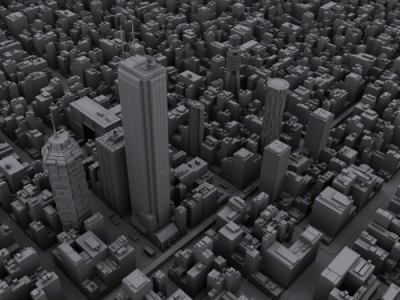 A while ago we built a imaginary or fantasy city in 3D Studio Max - partly as a way of experimenting with the software and partly as a way to get around the rules implied of our Virtual London model of not being able to insert any politically sensitive buildings.
As part of the export process we used the Oblivion Engine to visualise the city in real-time, a technique which works remarkably well and one that we will have a tutorial on shortly. The movie below provides a sample flythough of the city in Oblivion.
Since our first development Google released SketchUp, their free of charge 3D modelling software. SketchUp is a powerful 3D modeller and one which is both fun and intuitive to use - not something you could say about 3D Max. As such it has led to the development of a number of fantasy cities such as 'Sun City' which we feature below.
Developed and posted by a YouTube user known as foxmtbr it provides an insight into the sort of city creations possible with SketchUp.
Google SketchUp is free of charge, if you fancy making your own fantasy city then simply download the software, start building and let us know how it goes..
2006-09-29
Real Time Architectual Visualisation in Oblivion
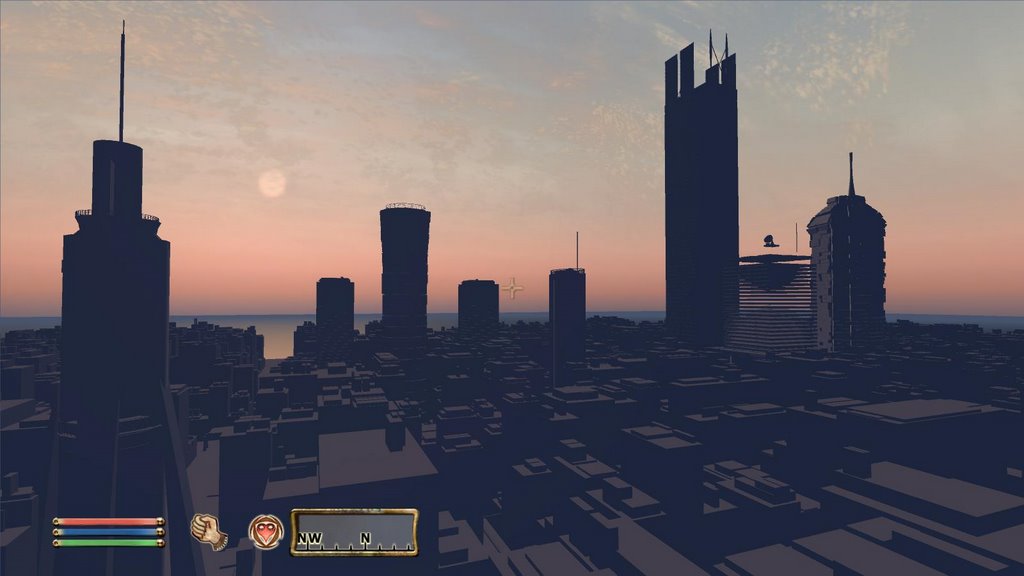
We have built a city as part of our Fantasy Architecture project but until now we have not been able to visualise it in real-time. There are of course high end real-time engines available to architects but these often come at considerable cost. In a series of posts we have been exploring the uses of game engines for architecture, taking this further we are now able to visualise large cityscapes in real-time using Oblivion.
The movie above illustrates the city first with snow fall and then at sunrise, it is still work in progress but for architects the use of a £20 game engine is surely intriguing..
2006-09-28
London Eye Visualisation in Oblivion

Following on from our post on the Quad at University College London in the Oblivion Engine we have run a test on importing raw CAD data. Our beta model of the London Eye imported without error which is encouraging for visualising the London model as a whole.
The movie above demonstrates the London Eye, placed outside the Quad. Note the movie has sound which adds considerably to the sense of place. We couldn't resist the chance to ride up to the London Eye on a horse, where else could you do it but in Oblivion (?).
A higher resolution movie can be downloaded here (37Mb .wmv) a full res version will be available tomorrow once it has processed
2006-09-26
Architectual Visualisation in Game Engines - Oblivion

As we mentioned in our post on Half Life 0 Oblivion 1 the engine behind Oblivion offers a lot of potential for architectural visualisation.
It has taken a couple of days but we finally have first stage work flow for importing models into Oblivion. The movie below shows the first beta output using our model of the Quad at University College London. The start of the movie is slightly dark due to the compression going into YouTube, we cycle through to daylight half way through the movie. A higher resolution version can be downloaded at the end of this post.
The Quad model was built to examine rapid modelling techniques (see our previous entry) for games and Google Earth. By importing it into a games engine it opens up the possibilities to rapidly visualise environments, both urban and rural.
We will put a tutorial online documenting the process as soon as its refined, thanks go to Joel at CASA for his help on the work flow...
Download a compressed version of the movie (16Mb .wmv) or high resolution (96Mb .wmv).
Half Life 0 Oblivion 1 - Half Life Update

Importing into the Half Life 2 Engine has proved slow and problematic. The requirement to create 'qc' files and compile models before even reaching the engine puts time constraints on the process that make it laborious for architectural models to be visualised.
The engine behind the game Oblivion however is a different matter. It is a joy to work with and with the use of plugins a work flow can be produced to visualise models in under an hour.
We are working on it at the moment with our University of London Quad model, a movie will be posted shortly... (Update - a movie is now online on the Oblivion post)
Subscribe to:
Posts (Atom)